
Azur Lane Integration
This module contains a few commands used to get information about Azur Lane, a side-scrolling shoot 'em up mobile video game created by Chinese developers Shanghai Manjuu and Xiamen Yongshi, released in 2017 for the iOS and Android operating systems.
The game was released in 4 regions/versions:
- CN (Chinese)
- JP (Japanese)
- KR (Korean)
- EN (English/Global)
Commands
/azurlane status
Command Syntax
/azurlane status [region:{en/jp/cn/kr}] Command Description
Checks the status of Azur Lane's game servers. Omitting region defaults to en and shows the status of the English servers.
The Chinese region will print 2 embeds: one for the Android servers, one for the iOS servers. Other regions have common servers among the 2 platforms.
Permissions Needed
- User: None - open to everyone by default (see the Permissions System)
Examples
/azurlane status
/azurlane status region:cn
Server Status Live Feed
The Azur Lane Server Status Feed offers an easy way to monitor Azur Lane servers availability for any region, and be notified when something changes on one (or more) of the webhooks configured in your Discord server.
See also
In order to better understand this module, it's very important that you are familiar with Discord webhooks. For more details about this Discord feature, please take a look at this official guide.
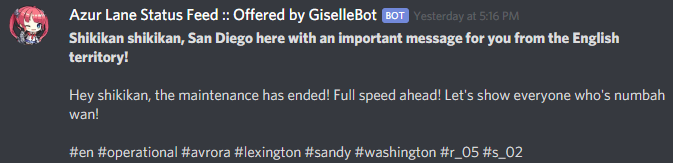
By default, the status feed mascot will be the Azur Lane character (ship) San Diego, and all of the feed messages will be Azur Lane-themed.
The full list of feed messages and monitored transitions can be found in this Google Spreadsheet.
Each message will be followed by a list of hashtags, that users may use to filter the specific messages they are interested into, indicating:
- The region code whom the message refers to:
#cn#en#jp#kr - The current status of the region, using a technical status tag:
#gateway_error#full_offline#partial_offline#operational - One or more server name tags, indicating the specific impacted servers: e.g.
#avrora#lexington... - The quote ID (refer to the Azur Lane Server Status Feed Sentences Google Spreadsheet) for the region status transition and/or server status transition: e.g.
#r_01#r_02s_02...
Feed management (dashboard)
Note
Starting, editing, listing and removing status feed webhooks is now done from your server's Azur Lane page on the dashboard. The concepts below still apply - only where you configure them has changed.
Warning
Discord webhooks are a very powerful feature, but they (currently) lack 2-way authentication of messages. This means that a malicious user knowing a webhook URL will be able, with some effort, to forge a message containing any kind of content using external tools and send that message to the webhook.
Feed fields
- Webhook URL: the Discord webhook the feed posts status transitions to. Set once when creating the feed - pasting a new URL later requires deleting and re-creating the feed.
- Regions: a checkbox filter for Azur Lane server regions (
cn,en,jp,kr). Leave all unchecked to match every region. - Filter Words: a whitelist of one or more words or phrases that a status transition's quote text or hashtags must (or, with the "Exclude Matches" checkbox, must not) contain before it's posted, combined using the Filter Mode (AND/OR) setting below. Enter one word or phrase per line - there's no comma-separated list or quoting syntax, so a multi-word phrase like
full offlineis simply its own line. Case-insensitive, partial-word matching. Leave empty for no filter. - Filter Mode:
OR(any filter word matches) orAND(every filter word must match). - Exclude Matches Instead of Including Them: inverts the Filter Words whitelist into a blacklist.
- Custom Header: replaces the default message template posted above each status transition (max 1024 characters). Supports the dynamic tags below.
- Webhook Display Name: overrides the webhook's posted username (max 32 characters). Leave blank to keep the webhook's own name.
- Do Not Overwrite the Webhook's Username / Avatar: two independent checkboxes to keep the webhook's own posted username and/or avatar untouched instead of the module's automated ones.
Permissions needed on the dashboard: Manage Webhooks (server-side)
Note
Custom headers can be formatted as embeds by following a very specific syntax. Do know that both GiselleBot and Discord are very sensitive to this specific syntax, which is easily "broken" by special characters: for this reason, using embeds as header is not suggested, nor directly supported. Use them at your own risk! If you are brave enough, I suggest the usage of this embed generator (click on the "Enable webhook mode" button at the bottom of the page).
Custom headers support a few dynamic tags that are replaced with their respective "real" value during run-time. These are:
- %region%: This will be replaced with the region name, capitalized (e.g.
Chinese,English, ...) - %region_code%: This will be replaced with the region code, uppercase (e.g.
CN,EN, ...) - %timestamp% or %timestamp_utc%: This will be replaced with the status transition UTC time, with format
YYYY-MM-DD HH:mm:ss (UTC). - %timestamp_iso%: This will be replaced with the status transition UTC time, as ISO8601 string.
- %timestamp_pst%: This will be replaced with the status transition PST time, with format
YYYY-MM-DD HH:mm:ss (PST).
Timestamp tags also support custom time zones. You can replace the utc part with either:
A different valid IANA time zone identifier (e.g. America/New_York, Europe/London).
An UTC offset, in the form of
[UTC/GMT](+/-)(hours)[:][minutes]. Here are some valid examples:%timestamp_Europe/London%%timestamp_America/Los_Angeles%%timestamp_Japan%%timestamp_PST8PDT%%timestamp_+0800%%timestamp_-10:30%%timestamp_UTC+2%
All headers will be followed by the actual quote text, including the additional hashtags.
Default header: Shikikan shikikan, San Diego here with an important message for you from the %region% territory!
Default webhook display name: "Azur Lane Status Feed :: Offered by GiselleBot"
See also
Full migration mapping for these commands: Migration Guide.